
Steven Bealle
Cybersecurity Analyst
Cybersecurity Analyst
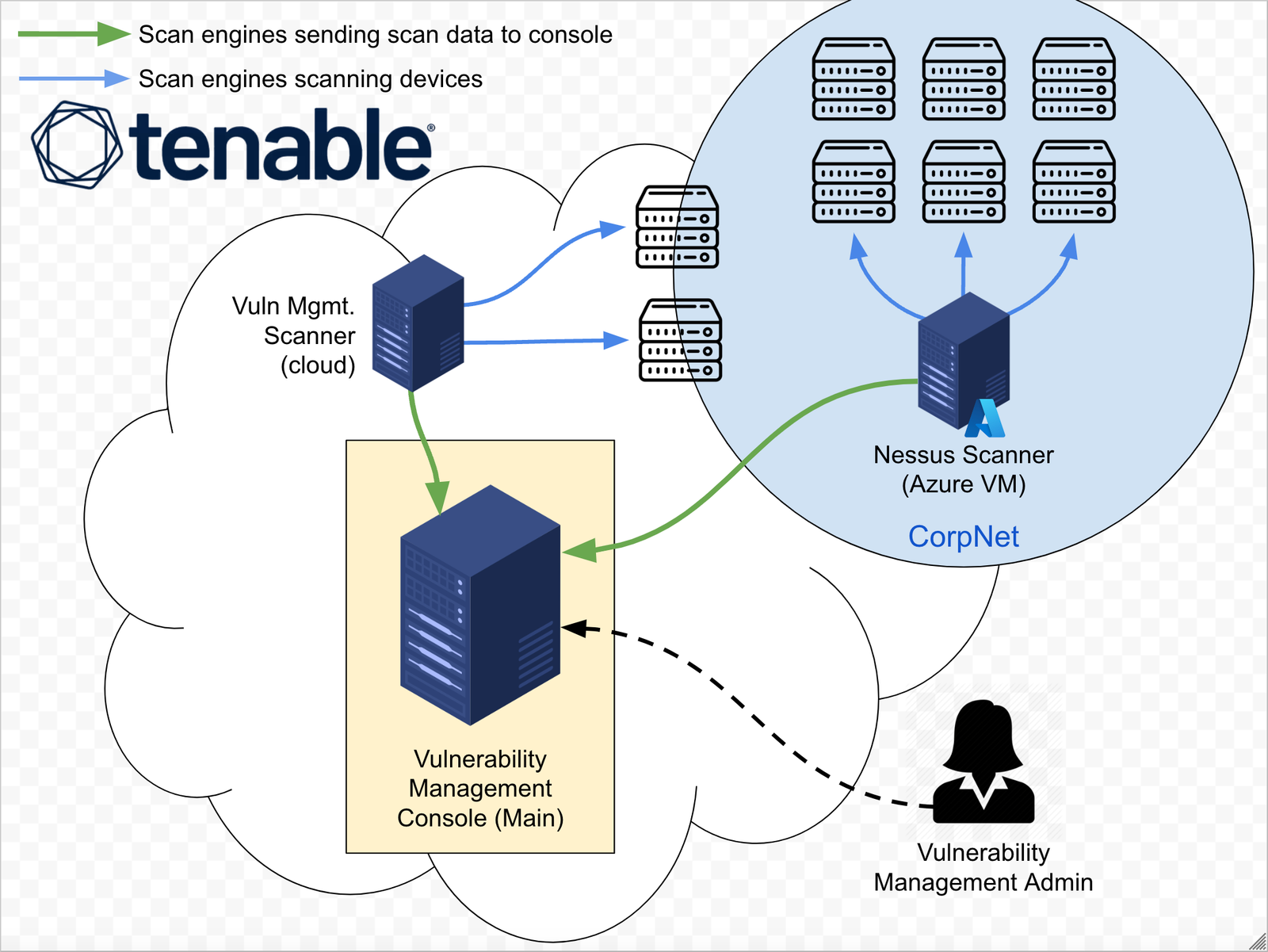
In this project, we simulate the implementation of a comprehensive vulnerability management program, from inception to completion.
Inception State: the organization has no existing policy or vulnerability management practices in place.
Completion State: a formal policy is enacted, stakeholder buy-in is secured, and a full cycle of organization-wide vulnerability remediation is successfully completed.
This phase focuses on drafting a Vulnerability Management Policy as a starting point for stakeholder engagement. The initial draft outlines scope, responsibilities, and remediation timelines, and may be adjusted based on feedback from relevant departments to ensure practical implementation before final approval by upper management.
This policy establishes the framework for managing vulnerabilities within [COMPANY], IT infrastructure to ensure the security and integrity of our systems through timely and effective identification, evaluation, and remediation of threats.
This policy applies to all IT assets owned or operated by [COMPANY], including networks, servers, endpoints, and associated applications.
Chief Information Security Officer (CISO): Oversight of the vulnerability management process and ensuring compliance with this policy.
Chief Information Officer (CIO): Ensuring that vulnerability management is integrated with [COMPANY]'s overall IT strategy.
Department Heads: Responsible for ensuring compliance within their respective departments.
Routine Scans: Conduct monthly scans of all IT assets to identify vulnerabilities.
Ad-Hoc Scans: Perform scans in response to significant security alerts or when new vulnerabilities are reported.
Based on the Common Vulnerability Scoring System (CVSS):
Critical (CVSS 9.0-10): Remediate or mitigate within 48 hours.
High (CVSS 7.0-8.9): Remediate or mitigate within 7 days.
Medium (CVSS 4.0-6.9): Remediate or mitigate within 30 days.
Low (CVSS 0.1-3.9): Remediate or mitigate within 90 days.
Routine Patching: Apply security patches and updates on a scheduled monthly basis.
Emergency Patching: Initiate within 24 hours for critical vulnerabilities that pose immediate risks.
Emergency Mitigation: Implement temporary measures (e.g., firewall rules, access restrictions) to protect against vulnerabilities while permanent solutions are developed.
Unpatchable Assets: Implement segmentation, increased monitoring, or phased removal from the environment.
Departments failing to comploy with this policy will face:
Immediate review of their procedures.
Mandatory retraining for involved personnel
Escalation to senior management for further disciplinary actions including termination
Chief Information Security Officer (CISO)
Sign: ____________________________________
Date: ____________________________________
Chief Information Officer (CIO)
Sign: ____________________________________
Date: ____________________________________
Chief Executive Officer
Sign: ____________________________________
Date: ____________________________________
This policy will be reviewed annually or sooner if necessary to accommodate changes in business processes or to address emerging threats.
Version: 1.0
Date:
Author: Steven Bealle
In this phase, a meeting with the server team introduces the draft Vulnerability Management Policy and assesses their capability to meet remediation timelines. Feedback leads to adjustments, like extending the critical remediation window from 48 hours to one week, ensuring collaborative implementation.
Josh: Hey, morning Jimmy. How's everything been recently? I know everyone's been busy these last few weeks.
Jimmy: Good morning, Josh. Yeah, it's been a bit hectic, but we're hanging in there. Thanks for asking. I had a chance to read through the policy draft, and overall, it makes sense. However, with our current staffing, we can't meet the aggressive remediation timelines, especially the 48-hour window for critical vulnerabilities.
Josh: Yeah, I totally understand. It is a bit aggressive, especially to start. Perhaps we can extend the critical close to one week. It might be a good compromise for now, and then we can reserve the 48-hour window for those truly really bad zero-day vulnerabilities.
Jimmy: Yeah, that sounds reasonable. We appreciate the flexibility. Can we have a bit of leeway in the beginning as we work through getting used to the remediation and patching process, just for the first few months or so?
Josh: Absolutely. After the policy is finalized, we'll officially start the program, but we're planning to give all the departments about six months to adjust and get comfortable with the new process and stuff. Does that sound fair?
Jimmy: Thanks, Josh. We'll do our best. I appreciate you including us in the decision-making process. It really helps feel like we're a part of the solution.
Josh: Yeah, of course, we're all in this together. Thanks for working with us.
Jimmy: No problem. Thanks for the short meeting.
Josh: Yeah, those are my favourite types. Bye now.
Jimmy: See you later.
After gathering feedback from the server team, the policy is revised, addressing aggressive remediation timelines. With final approval from upper management, the policy now guides the program, ensuring compliance and reference for pushback resolution.
This policy establishes the framework for managing vulnerabilities within [COMPANY]'s IT infrastructure to ensure the security and integrity of our systems through timely and effective identification, evaluation, and remediation of threats.
This policy applies to all IT assets owned or operated by [COMPANY], including networks, servers, endpoints, and associated applications.
Chief Information Security Officer (CISO): Oversight of the vulnerability management process and ensuring compliance with this policy.
Department Heads: Responsible for ensuring compliance within their respective departments.
Chief Information Officer (CIO): Ensuring that vulnerability management is integrated with [COMPANY]'s overall IT strategy.
Routine Scans: Conduct monthly scans of all IT assets to identify vulnerabilities.
Ad-Hoc Scans: Perform scans in response to significant security alerts or when new vulnerabilities are reported.
A local agent will be used for vulnerability assessment on end-user workstations.
Based on the Common Vulnerability Scoring System (CVSS):
Critical RCE ZERO DAY (CVSS 9.0-10): Remediate or mitigate within 48 hours.
Critical (CVSS 9.0-10): Remediate or mitigate within 7 days.
High (CVSS 7.0-8.9): Remediate or mitigate within 2 weeks.
Medium (CVSS 4.0-6.9): Remediate or mitigate within 30 days.
Low (CVSS 0.1-3.9): Remediate or mitigate within 90 days.
Routine Patching: Apply security patches and updates on a scheduled monthly basis.
Emergency Patching: Initiate within 24 hours for critical vulnerabilities that pose immediate risks.
Emergency Mitigation: Implement temporary measures (e.g., firewall rules, access restrictions) to protect against vulnerabilities while permanent solutions are developed.
Unpatchable Assets: Implement segmentation, increased monitoring, or phased removal from the environment.
Departments failing to comply with this policy will face:
Immediate review of their procedures.
Mandatory retraining for involved personnel.
Escalation to senior management for further disciplinary actions including termination.
Chief Information Security Officer (CISO)
Sign: Steven Bealle
Date: 10 FEBRUARY 2026
Chief Information Officer (CIO)
Sign: Jack Bauer
Date: 12 FEBRUARY 2026
Chief Executive Officer (CEO)
Sign: Max Power
Date: 11 FEBRUARY 2026
This policy will be reviewed annually or sooner if necessary to accommodate changes in business processes or to address emerging threats.
Version: 1.1
Date: 14 FEB 2026
Author: Steven Bealle
The team collaborates with the server team to initiate scheduled credential scans. A compromise is reached to scan a single server first, monitoring resource impact, and using just-in-time Active Directory credentials for secure, controlled access.
Josh: Morning, Jimmy.
Jimmy: Good morning. I heard you're ready to conduct some scans?
Josh: Yep. Now that our vulnerability management policy is in place, I wanted to get started on conducting some scheduled credential scans of your environment.
Jimmy: Sounds good to me. What's involved? How can we help?
Josh: We're planning to schedule some weekly scans of the server infrastructure. We estimate it'll take about 4 to 6 hours to scan all 200 assets. We'll need you to provide us with some administrative credentials which will allow the scan engine to remotely log into the targets to better assess them.
Jimmy: Whoa, whoa, hold on there. What does scanning actually entail? I'm a bit worried about resource utilization. Also, you want admin credentials to all 200 machines? That doesn't sound safe.
Josh: Yeah, those are valid concerns. The scan engine basically sends different traffic to the servers that will check for the existence of certain vulnerabilities, which include looking into the registry and looking if certain out-of-date software is installed or if there's any insecure protocols or cipher suites—that kind of thing. So that's why credentials are required.
Jimmy: I see. Well, as long as it doesn't bring the servers offline, I guess we should be okay.
Josh: Absolutely. Let's just scan a single server for now and keep an eye on the resource utilization.
Jimmy: Not a bad idea.
Josh: Great. Also, for the credentials, can you set up something in Active Directory for us? Like some Active Directory credentials you can just leave disabled until we're ready to do the scan, and then enable them during the scan? And then when it's finished, we can deprovision or at least disable that account. Kind of like a "Just-In-Time" access situation.
Jimmy: That sounds good. I'll ask Susan to get started on the automation for the account provisioning.
Josh: Awesome. Okay, talk soon.
Jimmy: Yeah, that sounds good. I'll get back to you once the credentials are set up. See you later.
Josh: See you later.
In this phase, an insecure Windows Server is provisioned to simulate the server team's environment. After creating vulnerabilities, an authenticated scan is performed, and the results are exported for future remediation steps.
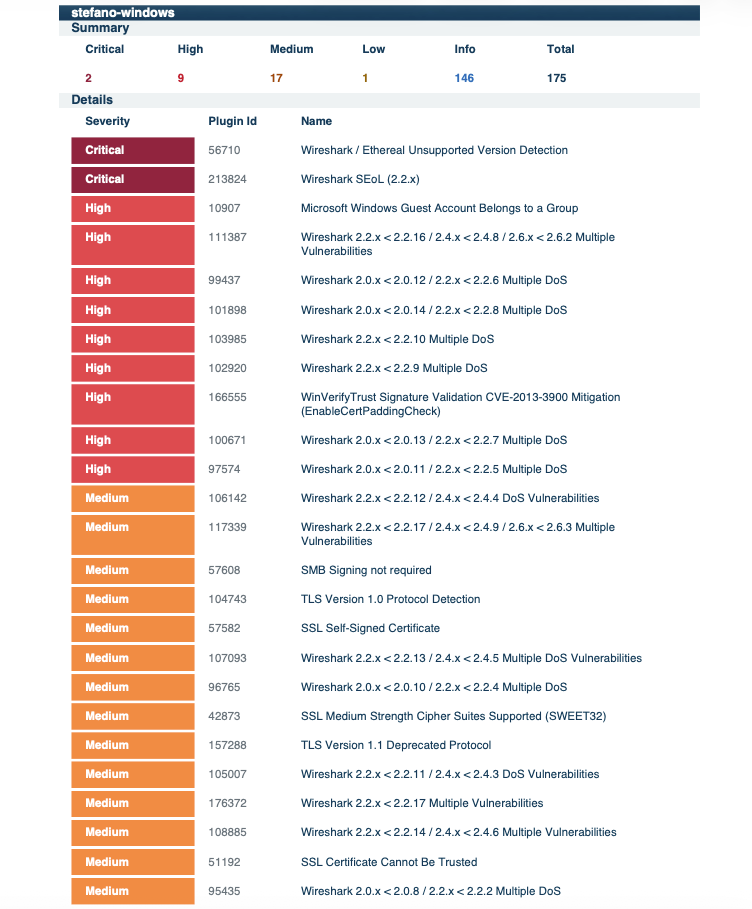
Scan 1 - Initial Scan
We assessed vulnerabilities and established a remediation prioritization strategy based on ease of remediation and impact. The following priorities were set:
The server team received remediation scripts and scan reports to address key vulnerabilities. This streamlined their efforts and prepared them for a follow-up review.
Subject: Vulnerability Remediation Scripts for Testing and Deployment
Hi Team,
Based on our initial vulnerability scan and assessment, we have created a set of scripts to help you tackle the initial remediation efforts. These scripts target key vulnerabilities and can be easily integrated into your deployment platform (e.g., SCCM). Please test them before deploying to production.
Vulnerabilities and Remediations:
1. Third-Party Software Removal (Wireshark)
2. Windows OS Secure Configuration (Insecure Protocols)
3. Windows OS Secure Configuration (Insecure Ciphersuites)
4. Windows OS Secure Configuration (Guest Account Group Membership)
5. Remediate CVE-2013-3900 (WinVerifyTrust)
Let me know if you have any questions or need any adjustments!
Best regards,
Steven Bealle, Security Analyst
Governance, Risk and Compliance
The server team reviewed vulnerability scan results, identifying outdated software, insecure accounts, and deprecated protocols. The remediation packages were prepared for submission to the Change Control Board (CAB).
Josh: Morning, Jimmy. How are you doing?
Jimmy: Not bad for a Monday. And yourself?
Josh: I'm still alive, so I can't complain. But before we get into the vulnerabilities, how did the actual scan go on your end? Did you have any outages or overutilization or anything?
Jimmy: The scan went well. We were monitoring them, and aside from all the open connections, we would have never known a scan was taking place.
Josh: Yeah, that's good news. I kind of expected that much. We can keep monitoring going forward, but I don't expect we'll have any issues with resource utilization. Do you mind if I dive into the vulnerability findings?
Jimmy: Yeah, absolutely.
Josh: Cool. I'm going to share my screen really quick. So basically, the majority of these vulnerabilities come from Wireshark being installed. You can see all these Wiresharks because it's just super out of date, that's all. One interesting thing I did find is the local guest account on the servers actually belongs to a group, and I looked deeper and it belongs to the local administrators group. I'm not sure why that is. Also, some of these might be automatically resolved by Windows updates, like this Microsoft Edge Chromium one. And then I'm not sure about this one as well, could be resolved by Windows updates... I'm not really sure. But these, we don't have to worry about the self-signed certificate one 'cause it's just, you know, the computer self-signed cert. But these medium-strength Cipher Suites and TLS 1.1 and 1.0—these are like deprecated Cipher Suites and deprecated protocols. So I think we should take some time to remediate these. So basically just Wireshark, the protocols, Cipher Suites, and removing the guest account is what we're looking at.
Jimmy: Very interesting. The good news is I suspect most of our servers are going to have the same vulnerabilities. Hopefully, that makes things easier during remediation.
Josh: Yeah, that's actually good news, like a uniform loadout. Do you foresee any issues with remediating any specifically, like the Cipher Suites and the insecure protocols?
Jimmy: I highly doubt there will be any issues. We'll run it through the next Change Control Board. Uninstalling Wireshark and fixing the guest account, those shouldn't be an issue. Those aren't supposed to be on the servers anyway; I'll have to talk to our SysAdmins about that.
Josh: Yeah, that's good news. I'll go ahead and get started on building out some remediation packages for you to kind of make your life easier when it comes time to fix them.
Jimmy: Yeah, that sounds great.
Josh: Oh, I wanted to ask, do you have anything in place to actually fix the Windows update-related vulnerabilities? Like, do you have patch management already?
Jimmy: Oh, yes. I'm not actually worried about that. Windows updates should be handled automatically by next week. We have patch management in place.
Josh: Okay, excellent. All right, I'll get started on researching the best way to remediate these findings, and I'll get back to you before the next Change Control Board.
Jimmy: Sounds good. Talk to you soon.
Josh: Cool, cool. Talk to you soon.
The Change Control Board (CAB) reviewed and approved the plan to remove insecure protocols and cipher suites. The plan included a rollback script and a tiered deployment approach.
Johnny: Okay, next up on the list are a couple of vulnerability remediations for the server team. Number one: removal of insecure protocols. And number two: removal of insecure Cipher Suites. It looks like Josh from the risk department is working in conjunction with Jimmy from infrastructure on this. Jimmy, do you want to walk us through the technical aspects of the change being implemented?
Jimmy: Normally I would, but do you mind giving this one to Josh? He actually built a solution for us; we're still getting used to the process.
Josh: Uh, yeah, I can explain these. So basically, insecure Cipher Suites and protocols—the existence of those on the system just means that the system is capable of negotiating and using some kind of algorithm or protocol that's been deprecated. Right? If it connects to a server and the server only wants to use those protocols, it's possible that the computer will use them. And these are controlled by the Windows registry. It's a really simple fix. We just wrote a PowerShell script that goes through and disables all the insecure protocols and ciphers and then enables the ones that are standardized or that are like today's standard, that are secure. So it's really... it's really straightforward.
Jack: Yeah, that sounds good. But what if something goes wrong? Do we have a rollback plan in place? Did you even think about that?
Josh: Yes, absolutely. So first of all, we're going to do a tiered deployment. So it means like a pilot group, which is a really small group of computers, pre-pilot, pre-production, and then finally production where it goes everywhere. On top of this, we have a fully built-in, tested, automated rollback script for each remediation. So the script will actually restore the original protocols and ciphers should there be any unknown issues that come up.
Jack: That sounds good, I guess. I notice the fixes are simple registry updates. I'm not too concerned, I suppose.
Josh: Yep, yep. Exactly, exactly.
Johnny: Any more questions from anybody? Great. That wraps things up for this week's CAB meeting. See you all next week.
Everyone: See you later.
To ensure service availability during the remediation of insecure protocols and cipher suites, the following risk mitigation strategy was presented to and approved by the Change Advisory Board (CAB).
To minimize impact, the remediation follows a tiered deployment schedule:
1. Pilot Group: A small, isolated subset of non-critical endpoints to validate the script execution.
2. Pre-Production: Deployment to the staging environment to test application compatibility.
3. Production: Full environment rollout once stability is confirmed.
The server team used a PowerShell script to remove outdated Wireshark. A follow-up scan confirmed successful remediation.
# Define the variables
$wiresharkDisplayName = "Wireshark 2.2.1 (64-bit)"
$uninstallerPath = "$env:ProgramFiles\Wireshark\uninstall.exe"
$silentUninstallSwitch = "/S"

# Function to uninstall Wireshark
function Uninstall-Wireshark {
    if (Test-Path -Path $uninstallerPath) {
        Write-Output "Uninstalling Wireshark..."
        & $uninstallerPath $silentUninstallSwitch
        Write-Output "$($wiresharkDisplayName) has been uninstalled."
    }
}
Uninstall-Wireshark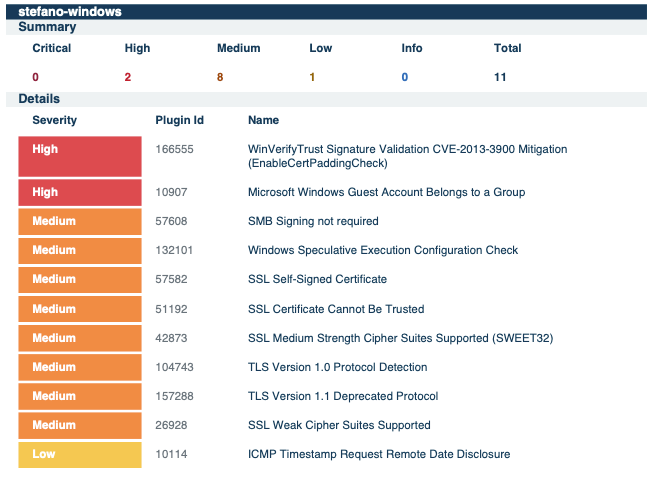
Scan 2 - Third Party Software Removal
The server team used PowerShell scripts to remediate insecure protocols and cipher suites. A follow-up scan verified successful remediation.
<#
.SYNOPSIS
    Toggles cryptographic protocols (secure vs insecure) on the system.
    Please test thoroughly in a non-production environment before deploying widely.
    Make sure to run as Administrator or with appropriate privileges.

.TESTED ON
    Date(s) Tested  : 2026-02-12
    Tested By       : Steven Bealle
    Systems Tested  : Windows Server 2019 Datacenter, Build 1809
    PowerShell Ver. : 5.1.17763.6189

.USAGE
    Set [$makeSecure = $true] to secure the system
    Example syntax:
    PS C:\> .\toggle-protocols.ps1
#>

# Variable to determine if we want to make the computer secure or insecure
$makeSecure = $true

# Check if the script is run as Administrator
function Check-Admin {
    $identity = [System.Security.Principal.WindowsIdentity]::GetCurrent()
    $principal = New-Object System.Security.Principal.WindowsPrincipal($identity)
    $principal.IsInRole([System.Security.Principal.WindowsBuiltInRole]::Administrator)
}

# Main script
if (-not (Check-Admin)) {
    Write-Error "Access Denied. Please run with Administrator privileges."
    exit 1
}

# SSL 2.0 settings
$serverPathSSL2 = "HKLM:\SYSTEM\CurrentControlSet\Control\SecurityProviders\SCHANNEL\Protocols\SSL 2.0\Server"
$clientPathSSL2 = "HKLM:\SYSTEM\CurrentControlSet\Control\SecurityProviders\SCHANNEL\Protocols\SSL 2.0\Client"

if ($makeSecure) {
    New-Item -Path $serverPathSSL2 -Force | Out-Null
    New-ItemProperty -Path $serverPathSSL2 -Name 'Enabled' -Value 0 -PropertyType 'DWord' -Force | Out-Null
    New-ItemProperty -Path $serverPathSSL2 -Name 'DisabledByDefault' -Value 1 -PropertyType 'DWord' -Force | Out-Null

    New-Item -Path $clientPathSSL2 -Force | Out-Null
    New-ItemProperty -Path $clientPathSSL2 -Name 'Enabled' -Value 0 -PropertyType 'DWord' -Force | Out-Null
    New-ItemProperty -Path $clientPathSSL2 -Name 'DisabledByDefault' -Value 1 -PropertyType 'DWord' -Force | Out-Null

    Write-Host "SSL 2.0 has been disabled."
} else {
    New-Item -Path $serverPathSSL2 -Force | Out-Null
    New-ItemProperty -Path $serverPathSSL2 -Name 'Enabled' -Value 1 -PropertyType 'DWord' -Force | Out-Null
    New-ItemProperty -Path $serverPathSSL2 -Name 'DisabledByDefault' -Value 0 -PropertyType 'DWord' -Force | Out-Null

    New-Item -Path $clientPathSSL2 -Force | Out-Null
    New-ItemProperty -Path $clientPathSSL2 -Name 'Enabled' -Value 1 -PropertyType 'DWord' -Force | Out-Null
    New-ItemProperty -Path $clientPathSSL2 -Name 'DisabledByDefault' -Value 0 -PropertyType 'DWord' -Force | Out-Null

    Write-Host "SSL 2.0 has been enabled."
}

# SSL 3.0 settings
$serverPathSSL3 = "HKLM:\SYSTEM\CurrentControlSet\Control\SecurityProviders\SCHANNEL\Protocols\SSL 3.0\Server"
$clientPathSSL3 = "HKLM:\SYSTEM\CurrentControlSet\Control\SecurityProviders\SCHANNEL\Protocols\SSL 3.0\Client"

if ($makeSecure) {
    New-Item -Path $serverPathSSL3 -Force | Out-Null
    New-ItemProperty -Path $serverPathSSL3 -Name 'Enabled' -Value 0 -PropertyType 'DWord' -Force | Out-Null
    New-ItemProperty -Path $serverPathSSL3 -Name 'DisabledByDefault' -Value 1 -PropertyType 'DWord' -Force | Out-Null

    New-Item -Path $clientPathSSL3 -Force | Out-Null
    New-ItemProperty -Path $clientPathSSL3 -Name 'Enabled' -Value 0 -PropertyType 'DWord' -Force | Out-Null
    New-ItemProperty -Path $clientPathSSL3 -Name 'DisabledByDefault' -Value 1 -PropertyType 'DWord' -Force | Out-Null

    Write-Host "SSL 3.0 has been disabled."
} else {
    New-Item -Path $serverPathSSL3 -Force | Out-Null
    New-ItemProperty -Path $serverPathSSL3 -Name 'Enabled' -Value 1 -PropertyType 'DWord' -Force | Out-Null
    New-ItemProperty -Path $serverPathSSL3 -Name 'DisabledByDefault' -Value 0 -PropertyType 'DWord' -Force | Out-Null

    New-Item -Path $clientPathSSL3 -Force | Out-Null
    New-ItemProperty -Path $clientPathSSL3 -Name 'Enabled' -Value 1 -PropertyType 'DWord' -Force | Out-Null
    New-ItemProperty -Path $clientPathSSL3 -Name 'DisabledByDefault' -Value 0 -PropertyType 'DWord' -Force | Out-Null

    Write-Host "SSL 3.0 has been enabled."
}

# TLS 1.0 settings
$serverPathTLS10 = "HKLM:\SYSTEM\CurrentControlSet\Control\SecurityProviders\SCHANNEL\Protocols\TLS 1.0\Server"
$clientPathTLS10 = "HKLM:\SYSTEM\CurrentControlSet\Control\SecurityProviders\SCHANNEL\Protocols\TLS 1.0\Client"

if ($makeSecure) {
    New-Item -Path $serverPathTLS10 -Force | Out-Null
    New-ItemProperty -Path $serverPathTLS10 -Name 'Enabled' -Value 0 -PropertyType 'DWord' -Force | Out-Null
    New-ItemProperty -Path $serverPathTLS10 -Name 'DisabledByDefault' -Value 1 -PropertyType 'DWord' -Force | Out-Null

    New-Item -Path $clientPathTLS10 -Force | Out-Null
    New-ItemProperty -Path $clientPathTLS10 -Name 'Enabled' -Value 0 -PropertyType 'DWord' -Force | Out-Null
    New-ItemProperty -Path $clientPathTLS10 -Name 'DisabledByDefault' -Value 1 -PropertyType 'DWord' -Force | Out-Null

    Write-Host "TLS 1.0 has been disabled."
} else {
    New-Item -Path $serverPathTLS10 -Force | Out-Null
    New-ItemProperty -Path $serverPathTLS10 -Name 'Enabled' -Value 1 -PropertyType 'DWord' -Force | Out-Null
    New-ItemProperty -Path $serverPathTLS10 -Name 'DisabledByDefault' -Value 0 -PropertyType 'DWord' -Force | Out-Null

    New-Item -Path $clientPathTLS10 -Force | Out-Null
    New-ItemProperty -Path $clientPathTLS10 -Name 'Enabled' -Value 1 -PropertyType 'DWord' -Force | Out-Null
    New-ItemProperty -Path $clientPathTLS10 -Name 'DisabledByDefault' -Value 0 -PropertyType 'DWord' -Force | Out-Null

    Write-Host "TLS 1.0 has been enabled."
}

# TLS 1.1 settings
$serverPathTLS11 = "HKLM:\SYSTEM\CurrentControlSet\Control\SecurityProviders\SCHANNEL\Protocols\TLS 1.1\Server"
$clientPathTLS11 = "HKLM:\SYSTEM\CurrentControlSet\Control\SecurityProviders\SCHANNEL\Protocols\TLS 1.1\Client"

if ($makeSecure) {
    New-Item -Path $serverPathTLS11 -Force | Out-Null
    New-ItemProperty -Path $serverPathTLS11 -Name 'Enabled' -Value 0 -PropertyType 'DWord' -Force | Out-Null
    New-ItemProperty -Path $serverPathTLS11 -Name 'DisabledByDefault' -Value 1 -PropertyType 'DWord' -Force | Out-Null

    New-Item -Path $clientPathTLS11 -Force | Out-Null
    New-ItemProperty -Path $clientPathTLS11 -Name 'Enabled' -Value 0 -PropertyType 'DWord' -Force | Out-Null
    New-ItemProperty -Path $clientPathTLS11 -Name 'DisabledByDefault' -Value 1 -PropertyType 'DWord' -Force | Out-Null

    Write-Host "TLS 1.1 has been disabled."
} else {
    New-Item -Path $serverPathTLS11 -Force | Out-Null
    New-ItemProperty -Path $serverPathTLS11 -Name 'Enabled' -Value 1 -PropertyType 'DWord' -Force | Out-Null
    New-ItemProperty -Path $serverPathTLS11 -Name 'DisabledByDefault' -Value 0 -PropertyType 'DWord' -Force | Out-Null

    New-Item -Path $clientPathTLS11 -Force | Out-Null
    New-ItemProperty -Path $clientPathTLS11 -Name 'Enabled' -Value 1 -PropertyType 'DWord' -Force | Out-Null
    New-ItemProperty -Path $clientPathTLS11 -Name 'DisabledByDefault' -Value 0 -PropertyType 'DWord' -Force | Out-Null

    Write-Host "TLS 1.1 has been enabled."
}

# TLS 1.2 settings
$serverPathTLS12 = "HKLM:\SYSTEM\CurrentControlSet\Control\SecurityProviders\SCHANNEL\Protocols\TLS 1.2\Server"
$clientPathTLS12 = "HKLM:\SYSTEM\CurrentControlSet\Control\SecurityProviders\SCHANNEL\Protocols\TLS 1.2\Client"

if ($makeSecure) {
    New-Item -Path $serverPathTLS12 -Force | Out-Null
    New-ItemProperty -Path $serverPathTLS12 -Name 'Enabled' -Value 1 -PropertyType 'DWord' -Force | Out-Null
    New-ItemProperty -Path $serverPathTLS12 -Name 'DisabledByDefault' -Value 0 -PropertyType 'DWord' -Force | Out-Null

    New-Item -Path $clientPathTLS12 -Force | Out-Null
    New-ItemProperty -Path $clientPathTLS12 -Name 'Enabled' -Value 1 -PropertyType 'DWord' -Force | Out-Null
    New-ItemProperty -Path $clientPathTLS12 -Name 'DisabledByDefault' -Value 0 -PropertyType 'DWord' -Force | Out-Null

    Write-Host "TLS 1.2 has been enabled."
} else {
    New-Item -Path $serverPathTLS12 -Force | Out-Null
    New-ItemProperty -Path $serverPathTLS12 -Name 'Enabled' -Value 0 -PropertyType 'DWord' -Force | Out-Null
    New-ItemProperty -Path $serverPathTLS12 -Name 'DisabledByDefault' -Value 1 -PropertyType 'DWord' -Force | Out-Null

    New-Item -Path $clientPathTLS12 -Force | Out-Null
    New-ItemProperty -Path $clientPathTLS12 -Name 'Enabled' -Value 0 -PropertyType 'DWord' -Force | Out-Null
    New-ItemProperty -Path $clientPathTLS12 -Name 'DisabledByDefault' -Value 1 -PropertyType 'DWord' -Force | Out-Null

    Write-Host "TLS 1.2 has been disabled."
}

Write-Host "Please reboot for settings to take effect."<#
.SYNOPSIS
Toggles ciphersuites (secure vs insecure) on the system.
Please test thoroughly in a non-production environment before deploying widely.
Make sure to run as Administrator or with appropriate privileges.
.TESTED ON
Date(s) Tested : 2026-02-12
Tested By : Steven Bealle
Systems Tested : Windows Server 2019 Datacenter, Build 1809
PowerShell Ver. : 5.1.17763.6189
.USAGE
Set [$secureEnvironment = $true] to secure the system
Example syntax:
PS C:\> .\toggle-cipher-suites.ps1
#>
# Set this variable to $true for a secure environment, $false for an insecure environment
$secureEnvironment = $true
# Define the secure cipher suite list as a comma-separated string
$secureCipherSuites = "TLS_AES_256_GCM_SHA384,TLS_AES_128_GCM_SHA256,TLS_ECDHE_ECDSA_WITH_AES_256_GCM_SHA384,TLS_ECDHE_ECDSA_WITH_AES_128_GCM_SHA256,TLS_ECDHE_RSA_WITH_AES_256_GCM_SHA384,TLS_ECDHE_RSA_WITH_AES_128_GCM_SHA256,TLS_DHE_RSA_WITH_AES_256_GCM_SHA384,TLS_DHE_RSA_WITH_AES_128_GCM_SHA256,TLS_ECDHE_ECDSA_WITH_AES_256_CBC_SHA384,TLS_ECDHE_ECDSA_WITH_AES_128_CBC_SHA256,TLS_ECDHE_RSA_WITH_AES_256_CBC_SHA384,TLS_ECDHE_RSA_WITH_AES_128_CBC_SHA256,TLS_ECDHE_ECDSA_WITH_AES_256_CBC_SHA,TLS_ECDHE_ECDSA_WITH_AES_128_CBC_SHA,TLS_ECDHE_RSA_WITH_AES_256_CBC_SHA,TLS_ECDHE_RSA_WITH_AES_128_CBC_SHA,TLS_RSA_WITH_AES_256_GCM_SHA384,TLS_RSA_WITH_AES_128_GCM_SHA256,TLS_RSA_WITH_AES_256_CBC_SHA256,TLS_RSA_WITH_AES_128_CBC_SHA256,TLS_RSA_WITH_AES_256_CBC_SHA,TLS_RSA_WITH_AES_128_CBC_SHA,TLS_RSA_WITH_NULL_SHA256,TLS_RSA_WITH_NULL_SHA,TLS_PSK_WITH_AES_256_GCM_SHA384,TLS_PSK_WITH_AES_128_GCM_SHA256,TLS_PSK_WITH_AES_256_CBC_SHA384,TLS_PSK_WITH_AES_128_CBC_SHA256,TLS_PSK_WITH_NULL_SHA384,TLS_PSK_WITH_NULL_SHA256"
# Define the insecure cipher suite list, which includes all secure ciphers plus additional insecure ones
$insecureCipherSuites = "TLS_AES_256_GCM_SHA384,TLS_AES_128_GCM_SHA256,TLS_ECDHE_ECDSA_WITH_AES_256_GCM_SHA384,TLS_ECDHE_ECDSA_WITH_AES_128_GCM_SHA256,TLS_ECDHE_RSA_WITH_AES_256_GCM_SHA384,TLS_ECDHE_RSA_WITH_AES_128_GCM_SHA256,TLS_DHE_RSA_WITH_AES_256_GCM_SHA384,TLS_DHE_RSA_WITH_AES_128_GCM_SHA256,TLS_ECDHE_ECDSA_WITH_AES_256_CBC_SHA384,TLS_ECDHE_ECDSA_WITH_AES_128_CBC_SHA256,TLS_ECDHE_RSA_WITH_AES_256_CBC_SHA384,TLS_ECDHE_RSA_WITH_AES_128_CBC_SHA256,TLS_ECDHE_ECDSA_WITH_AES_256_CBC_SHA,TLS_ECDHE_ECDSA_WITH_AES_128_CBC_SHA,TLS_ECDHE_RSA_WITH_AES_256_CBC_SHA,TLS_ECDHE_RSA_WITH_AES_128_CBC_SHA,TLS_RSA_WITH_AES_256_GCM_SHA384,TLS_RSA_WITH_AES_128_GCM_SHA256,TLS_RSA_WITH_AES_256_CBC_SHA256,TLS_RSA_WITH_AES_128_CBC_SHA256,TLS_RSA_WITH_AES_256_CBC_SHA,TLS_RSA_WITH_AES_128_CBC_SHA,TLS_RSA_WITH_NULL_SHA256,TLS_RSA_WITH_NULL_SHA,TLS_PSK_WITH_AES_256_GCM_SHA384,TLS_PSK_WITH_AES_128_GCM_SHA256,TLS_PSK_WITH_AES_256_CBC_SHA384,TLS_PSK_WITH_AES_128_CBC_SHA256,TLS_PSK_WITH_NULL_SHA384,TLS_PSK_WITH_NULL_SHA256,TLS_RSA_WITH_DES_CBC_SHA,TLS_RSA_WITH_3DES_EDE_CBC_SHA,TLS_RSA_WITH_RC4_128_SHA,TLS_RSA_WITH_RC4_128_MD5,TLS_RSA_EXPORT1024_WITH_DES_CBC_SHA,TLS_RSA_EXPORT1024_WITH_RC4_56_SHA,TLS_RSA_EXPORT_WITH_RC2_CBC_40_MD5,TLS_RSA_EXPORT_WITH_RC4_40_MD5,SSL_RSA_WITH_DES_CBC_SHA,SSL_RSA_WITH_3DES_EDE_CBC_SHA,SSL_RSA_WITH_RC4_128_SHA,SSL_RSA_WITH_RC4_128_MD5,SSL_RSA_EXPORT1024_WITH_DES_CBC_SHA,SSL_RSA_EXPORT1024_WITH_RC4_56_SHA,SSL_RSA_EXPORT_WITH_RC2_CBC_40_MD5,SSL_RSA_EXPORT_WITH_RC4_40_MD5"
# Define the registry path where the cipher suite order is stored
$regPath = "HKLM:\SOFTWARE\Policies\Microsoft\Cryptography\Configuration\SSL\00010002"
# Check if the registry key exists, if not, create it
if (-not (Test-Path $regPath)) {
New-Item -Path $regPath -Force
}
# Determine the cipher suites list based on the secureEnvironment variable
if ($secureEnvironment) {
$selectedCipherSuites = $secureCipherSuites
Write-Output "Configuring a secure environment..."
} else {
$selectedCipherSuites = $insecureCipherSuites
Write-Output "Configuring an insecure environment..."
}
# Set the cipher suite order in the registry
Set-ItemProperty -Path $regPath -Name "Functions" -Value $selectedCipherSuites
# Enable SSL Cipher Suite Order in Group Policy
$policyPath = "HKLM:\SOFTWARE\Policies\Microsoft\Cryptography\Configuration\SSL"
$policyKey = "00010002"
$policyName = "Functions"
if (-not (Test-Path "$policyPath\$policyKey")) {
New-Item -Path "$policyPath" -Name "$policyKey" -Force
}
# Apply the selected cipher suites to the Group Policy
Set-ItemProperty -Path "$policyPath\$policyKey" -Name $policyName -Value $selectedCipherSuites
# Verify the changes
Write-Output "Cipher Suites have been updated to:"
Get-ItemProperty -Path $regPath -Name "Functions" | Select-Object -ExpandProperty Functions
# Enable SSL Cipher Suite Order policy
Set-ItemProperty -Path "HKLM:\SOFTWARE\Policies\Microsoft\Cryptography\Configuration\SSL\00010002" -Name "Enabled" -Value 1
# Inform the user to restart the server for changes to take effect
Write-Output "Please restart the server to apply the changes."
# End of combined script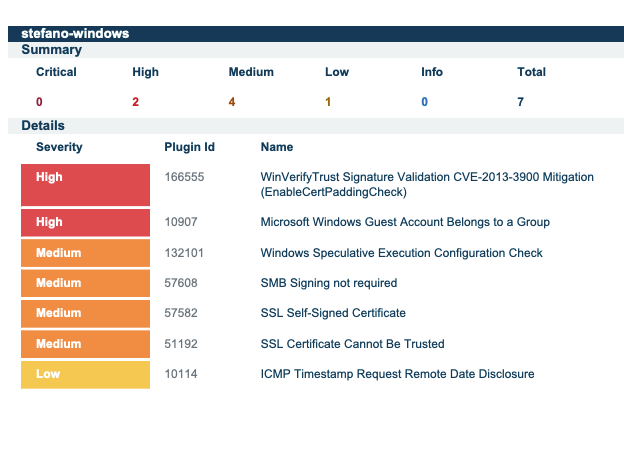
Scan 3 - Ciphersuites and Protocols
The server team removed the guest account from the administrator group. A new scan confirmed remediation.
<#
.SYNOPSIS
    Toggles guest account Administrators group membership (add vs remove) on the system.
    Please test thoroughly in a non-production environment before deploying widely.
    Make sure to run as Administrator or with appropriate privileges.


.TESTED ON
    Date(s) Tested  : 2026-02-02
    Tested By       : Steven Bealle
    Systems Tested  : Windows Server 2019 Datacenter, Build 1809
    PowerShell Ver. : 5.1.17763.6189

.USAGE
    Set [$AddGuestToAdminGroup = $False] to secure the system
    Example syntax:
    PS C:\> .\toggle-guest-local-administrators.ps1
 #>

 # Define the variable to control the action: $True to add the guest account, $False to remove it
$AddGuestToAdminGroup = $False

# Define the local group and user account
$LocalAdminGroup = "Administrators"
$GuestAccount = "Guest"

# Function to add the guest account to the Administrators group
function Add-GuestToAdminGroup {
    if (-not (Get-LocalGroupMember -Group $LocalAdminGroup -Member $GuestAccount -ErrorAction SilentlyContinue)) {
        Add-LocalGroupMember -Group $LocalAdminGroup -Member $GuestAccount
        Write-Output "Guest account has been added to the Administrators group."
    } else {
        Write-Output "Guest account is already a member of the Administrators group."
    }
}

# Function to remove the guest account from the Administrators group
function Remove-GuestFromAdminGroup {
    if (Get-LocalGroupMember -Group $LocalAdminGroup -Member $GuestAccount -ErrorAction SilentlyContinue) {
        Remove-LocalGroupMember -Group $LocalAdminGroup -Member $GuestAccount
        Write-Output "Guest account has been removed from the Administrators group."
    } else {
        Write-Output "Guest account is not a member of the Administrators group."
    }
}

# Check the variable and perform the appropriate action
if ($AddGuestToAdminGroup -eq $True) {
    Add-GuestToAdminGroup
} else {
    Remove-GuestFromAdminGroup
}
Scan 4 - Guest Account Group Removal
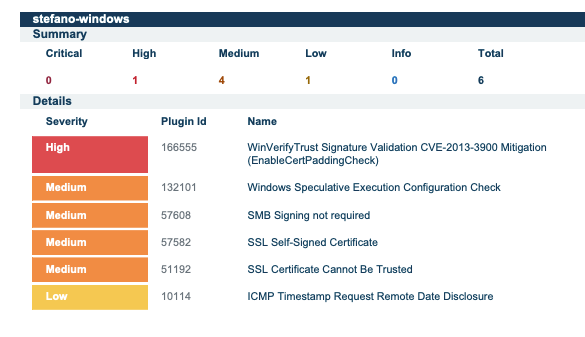
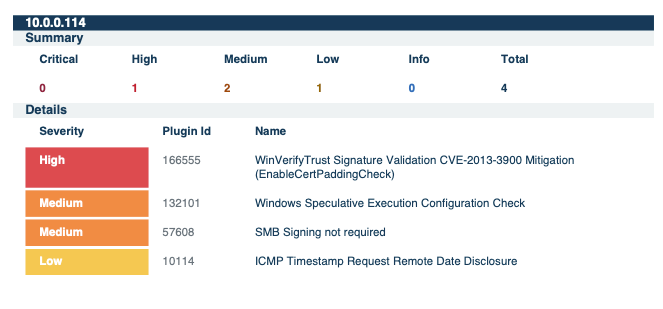
Windows updates were re-enabled and applied until the system was fully up to date. A fourth scan verified the changes.
Scan 5 - Post Windows Updates
Despite Windows Update being fully up to date, a vulnerability with a severity of high remained. I designed a script to remediate this vulnerability in Powershell, then ran a final scan to ensure the vulnerability was fixed.
<#
.SYNOPSIS
    Remediates the WinVerifyTrust Signature Validation Vulnerability (CVE-2013-3900).
    Sets EnableCertPaddingCheck to 1 to enable stricter validation.
    Please test thoroughly in a non-production environment before deploying widely.
    Make sure to run as Administrator.

.NOTES
    Author        : Steven Bealle
    Date Created  : 2026-02-13
    Last Modified : 2026-02-13
    Version       : 1.0
    Reference     : Microsoft Security Advisory 2915720

.TESTED ON
    Date(s) Tested  : 2026-02-13
    Tested By       : Steven Bealle
    Systems Tested  : Windows Server 2019 Datacenter, Build 1809
    PowerShell Ver. : 5.1.17763.6189

.USAGE
    Set [$enableStrictValidation = $true] to secure the system (Value 1).
    Set [$enableStrictValidation = $false] to revert changes (Value 0).
    Example syntax:
    PS C:\> .\remediate-cve-2013-3900.ps1
#>

# Toggle this variable to $true to Apply the fix (Secure), or $false to Revert (Insecure)
# Note: Microsoft recommends setting this to 1 to ENABLE the fix. 0 disables it.
$enableStrictValidation = $true

# Check if the script is run as Administrator
function Check-Admin {
    $identity = [System.Security.Principal.WindowsIdentity]::GetCurrent()
    $principal = New-Object System.Security.Principal.WindowsPrincipal($identity)
    $principal.IsInRole([System.Security.Principal.WindowsBuiltInRole]::Administrator)
}

if (-not (Check-Admin)) {
    Write-Error "Access Denied. Please run with Administrator privileges."
    exit 1
}

# Registry Paths (x64 and x86)
$paths = @(
    "HKLM:\Software\Microsoft\Cryptography\Wintrust\Config",
    "HKLM:\Software\Wow6432Node\Microsoft\Cryptography\Wintrust\Config"
)

# Determine the value to set (1 for Secure/Fix, 0 for Insecure/Default)
$valueToSet = if ($enableStrictValidation) { 1 } else { 0 }
$actionName = if ($enableStrictValidation) { "Enabling strict validation (Secure)" } else { "Disabling strict validation (Insecure)" }

Write-Host "$actionName..." -ForegroundColor Cyan

foreach ($path in $paths) {
    # Check if the registry key exists; if not, create it
    if (-not (Test-Path $path)) {
        Write-Host "Creating path: $path"
        New-Item -Path $path -Force | Out-Null
    }

    # Set the registry value
    Write-Host "Setting 'EnableCertPaddingCheck' to $valueToSet in: $path"
    Set-ItemProperty -Path $path -Name "EnableCertPaddingCheck" -Value $valueToSet -Type DWord -Force
}

Write-Host "Configuration updated successfully." -ForegroundColor Green
Write-Host "Note: You must restart the system for these changes to take effect."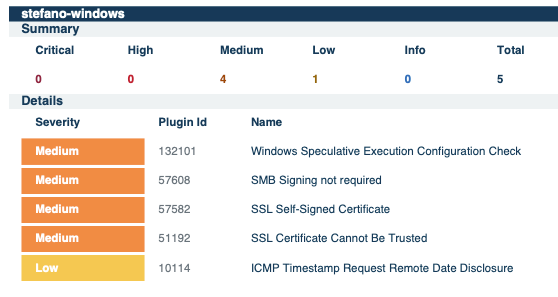
Scan 6 - Remediate CVE-2013-3900
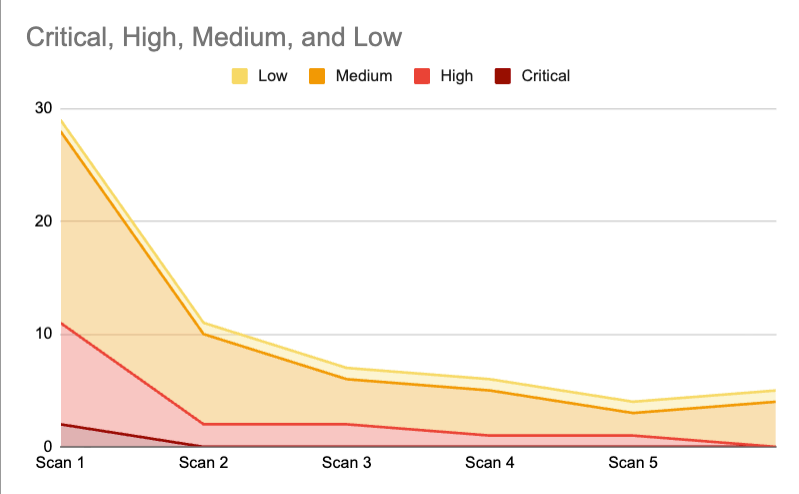
The remediation process reduced total vulnerabilities by 80%, from 29 to 5. Critical vulnerabilities were resolved by the second scan (100%), and high vulnerabilities were resolved by the 6th (100%). Mediums were reduced by 76%. In an actual production environment, asset criticality would further guide future remediation efforts.
Remediation Data
After completing the initial remediation cycle, the vulnerability management program transitions into Maintenance Mode. This phase ensures that vulnerabilities continue to be managed proactively.